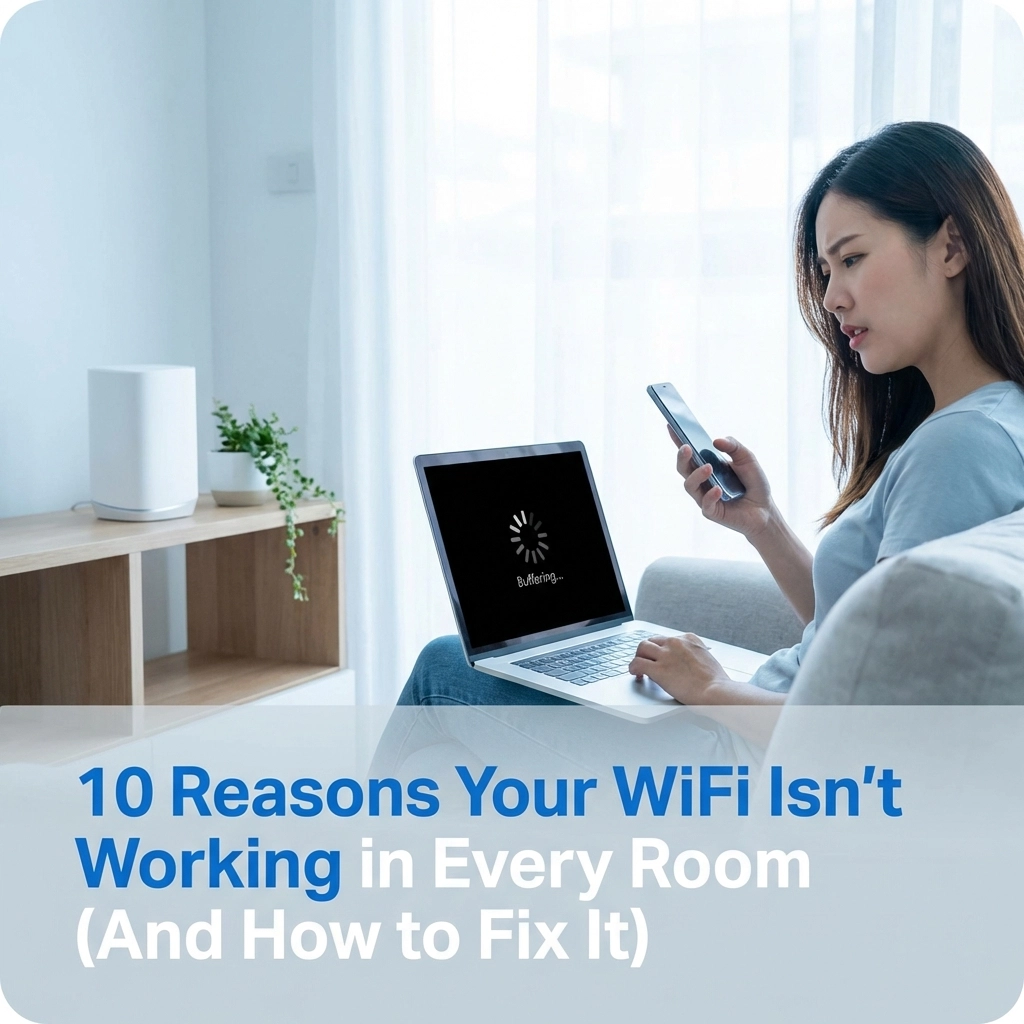
We've all been there. You're settling into the spare bedroom for a video call, or you're finally relaxing in the garden with your tablet, and suddenly… buffering. That dreaded spinning wheel. Your WiFi has decided this particular spot in your home is a no-go zone.
WiFi dead zones are frustrating, but they're not mysterious. There are real, fixable reasons why your signal drops out in certain rooms. Let's break down the 10 most common culprits: and more importantly, how you can sort them out.
1. Your Router Is Hiding in a Corner
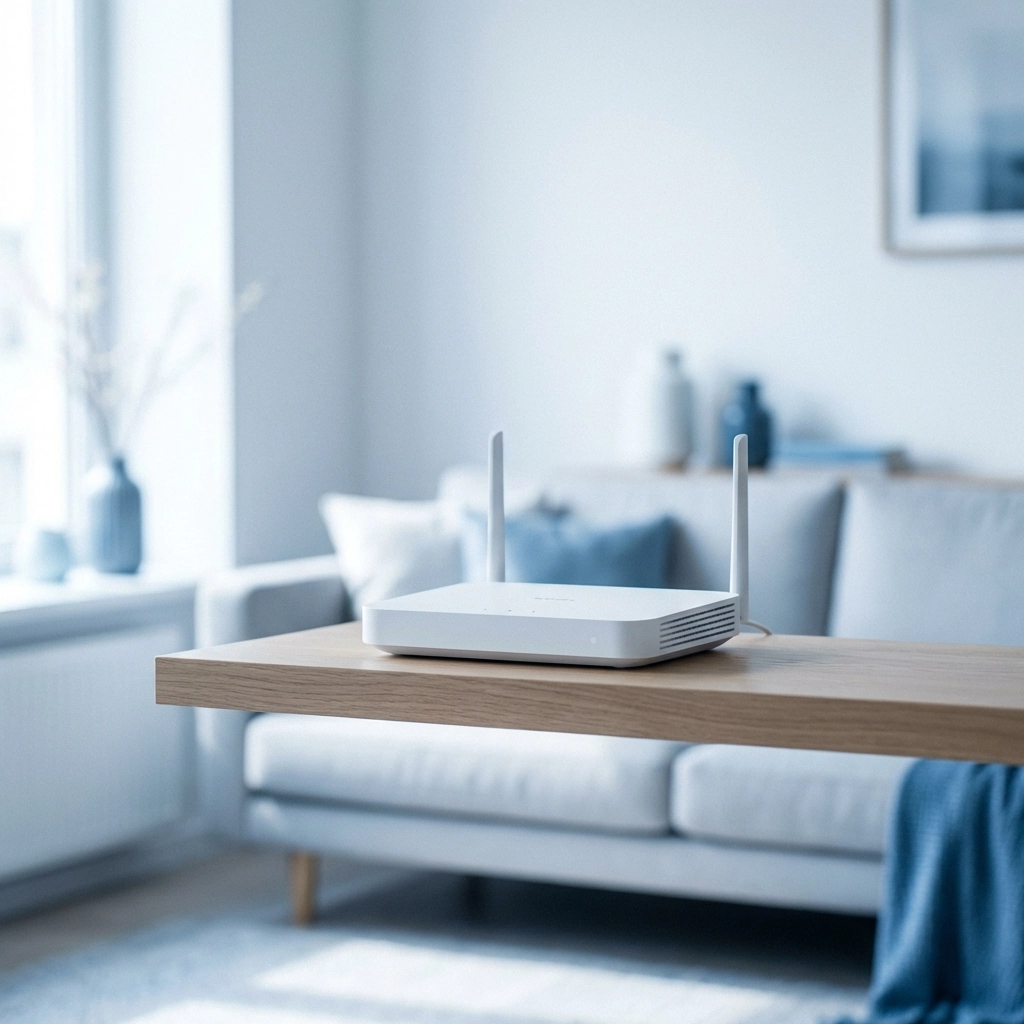
Here's the thing: your router isn't shy, but if you've tucked it away in a cupboard, behind the TV, or in the far corner of your house, it's going to struggle to reach every room.
WiFi signals radiate outward from your router in all directions. If it's sitting at the edge of your home, half of that signal is literally going outside or into your neighbour's place.
The Fix: Move your router to a central location in your home. Elevate it if you can: placing it on a shelf or mounted on a wall helps the signal travel further. Keep it out of enclosed spaces and away from other electronics.
2. Thick Walls and Floors Are Blocking the Signal
South African homes come in all shapes and sizes: from older brick houses to modern concrete apartments. Unfortunately, these solid building materials are WiFi's natural enemy.
Thick walls, concrete floors, and even large pieces of furniture can absorb or reflect your WiFi signal before it reaches the next room.
The Fix: If you can't move your router closer to the rooms that need coverage, consider switching to the 2.4GHz band for those distant areas. It's slower than 5GHz, but it penetrates walls much better. For serious coverage issues, a mesh WiFi system might be your best bet.
3. Other Electronics Are Causing Interference
Your WiFi router isn't the only device broadcasting signals in your home. Baby monitors, cordless phones, Bluetooth speakers, and even your microwave can interfere with your WiFi signal.
This is especially problematic on the 2.4GHz frequency, which is shared by many household devices.
The Fix: Keep your router away from other electronics: at least a metre or two if possible. If you're experiencing interference, try switching your devices to the 5GHz band, which is less crowded and less prone to interference from household appliances.
4. Your Neighbours' WiFi Is Crowding the Airwaves
Living in a complex or townhouse? You might be sharing WiFi channels with dozens of neighbours. When too many networks use the same channel, they all slow down.
Think of it like a crowded highway: everyone's trying to get somewhere, but nobody's moving fast.
The Fix: Log into your router's settings and check which channel you're using. Use a WiFi analyser app on your phone to see which channels are congested in your area, then switch to a less crowded one. Channels 1, 6, and 11 are typically the best options for 2.4GHz networks.

5. Your Router's Antennas Are Pointing the Wrong Way
If your router has external antennas, the way they're positioned actually matters. Antennas pointing straight up send signals horizontally, while antennas at an angle send signals in multiple directions.
The Fix: For single-story homes, keep your antennas vertical. For multi-story homes, angle some antennas horizontally to help the signal travel between floors. If you've got multiple antennas, try positioning the outer ones at 45-degree angles with the middle one pointing straight up.
6. Your Router Is Ancient
Technology moves fast, and routers are no exception. If your router is more than four or five years old, it might not support the latest WiFi standards: which means it can't keep up with your modern devices.
Older routers also struggle to handle multiple devices at once. With smart TVs, phones, laptops, tablets, and smart home gadgets all competing for bandwidth, an outdated router quickly becomes overwhelmed.
The Fix: Consider upgrading to a WiFi 6 (802.11ax) router. These newer models offer better coverage, faster speeds, and can handle many more simultaneous connections. If you're not sure what you need, get in touch with us for advice.
7. Too Many Devices Are Hogging the Bandwidth
Even with a decent router, having too many devices connected can slow things down. When your kids are streaming Netflix, you're on a video call, and someone else is downloading a game update, your bandwidth gets spread thin.
The result? Slow speeds and dropped connections, especially in rooms further from the router.
The Fix: Disconnect devices you're not using. Many routers also let you prioritise certain devices or applications: check your router's Quality of Service (QoS) settings to give priority to work devices or video calls.

8. Your Router's Firmware Is Out of Date
Your router runs on software called firmware, and just like your phone or computer, it needs updates. Outdated firmware can cause performance issues, security vulnerabilities, and connectivity problems.
The Fix: Log into your router's admin panel (usually through a web browser or app) and check for firmware updates. Many modern routers can update automatically: make sure this feature is enabled.
9. You're Too Far from the Router
WiFi signals weaken over distance. If your home office is on the opposite end of the house from your router, or you're trying to get signal in an outbuilding, you might simply be out of range.
The Fix: For smaller coverage gaps, a WiFi extender or repeater can boost your signal to hard-to-reach areas. Place it roughly halfway between your router and the dead zone for best results.
For larger homes or persistent dead zones, a mesh network is a better solution. Mesh systems use multiple access points that work together to blanket your entire home in WiFi coverage. Check out our guide on how to get great WiFi coverage in your property for more details.
10. Someone's Stealing Your WiFi
If your network isn't properly secured, neighbours or passersby might be connecting to your WiFi without your knowledge. This not only slows down your connection but also poses a security risk.
The Fix: Make sure your network is protected with WPA3 encryption (or at least WPA2). Use a strong, unique password: not "password123" or your street address. Check your router's admin panel to see a list of connected devices, and kick off any you don't recognise.
When DIY Isn't Enough
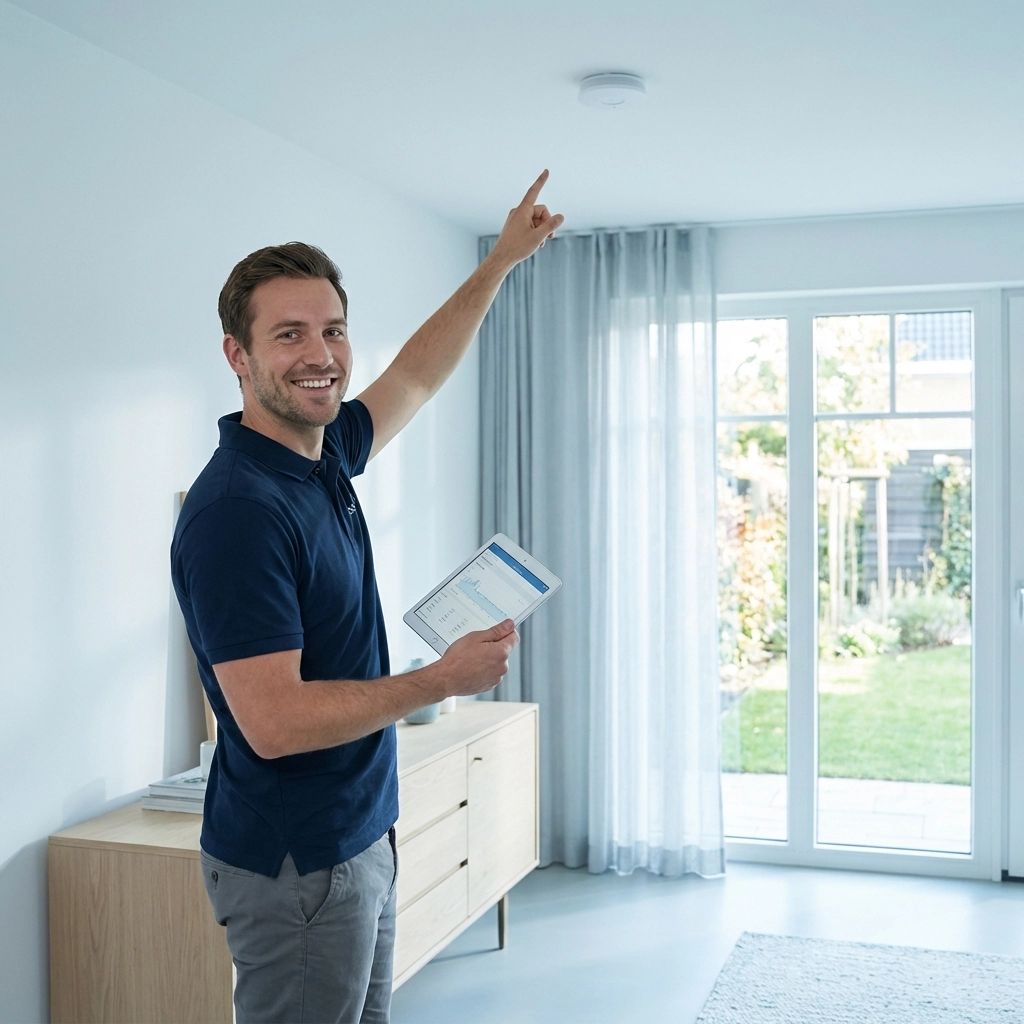
Sometimes, despite your best efforts, WiFi dead zones persist. Older homes with unusual layouts, thick walls, or multiple floors can be particularly challenging. In these cases, a professional WiFi assessment can identify exactly where your coverage is failing and recommend the right solution.
At WiFi Heroes, we specialise in getting WiFi to work properly throughout your entire home. Whether you need a mesh network installation, better router placement, or a complete network overhaul, we've got you covered.
Ready to Say Goodbye to Dead Zones?
Nobody should have to stand in a specific corner of their lounge just to load a webpage. With the right setup, you can enjoy fast, reliable WiFi in every room of your home.
If you've tried the fixes above and you're still struggling, it might be time to call in the experts. Get in touch with WiFi Heroes and let's get your whole home connected: properly.
For more WiFi tips and tricks, check out our other guides on how to fix slow WiFi at home and why your home needs a professional WiFi installation.