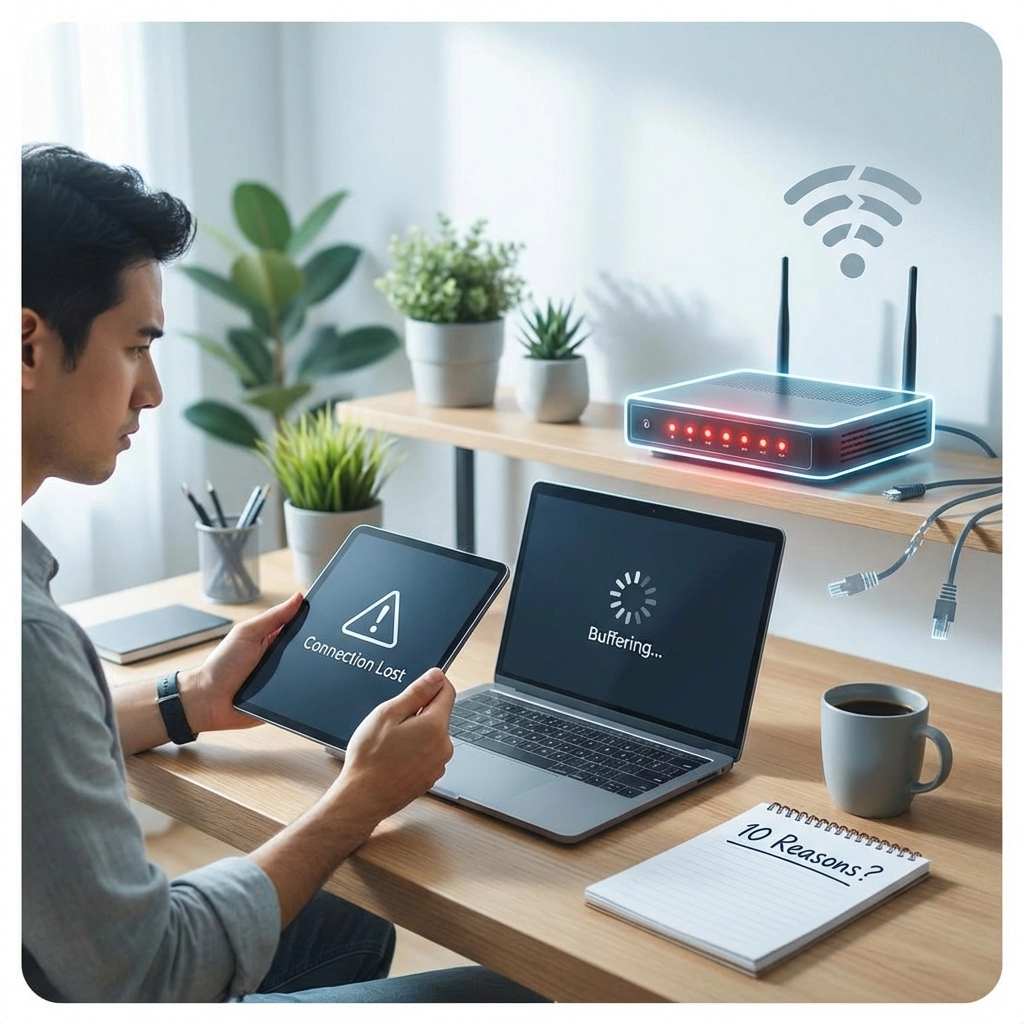
There's nothing quite as frustrating as being in the middle of an important video call, streaming your favourite show, or about to clinch victory in an online game: only for your internet to drop out completely. You reconnect, breathe a sigh of relief, and then… it happens again.
Sound familiar? You're definitely not alone.
A dropping internet connection is one of the most common tech complaints we hear at WiFi Heroes. The good news? Most of the time, there's a logical explanation: and a fix. Let's dive into the 10 most common reasons your connection keeps cutting out and what you can do about each one.
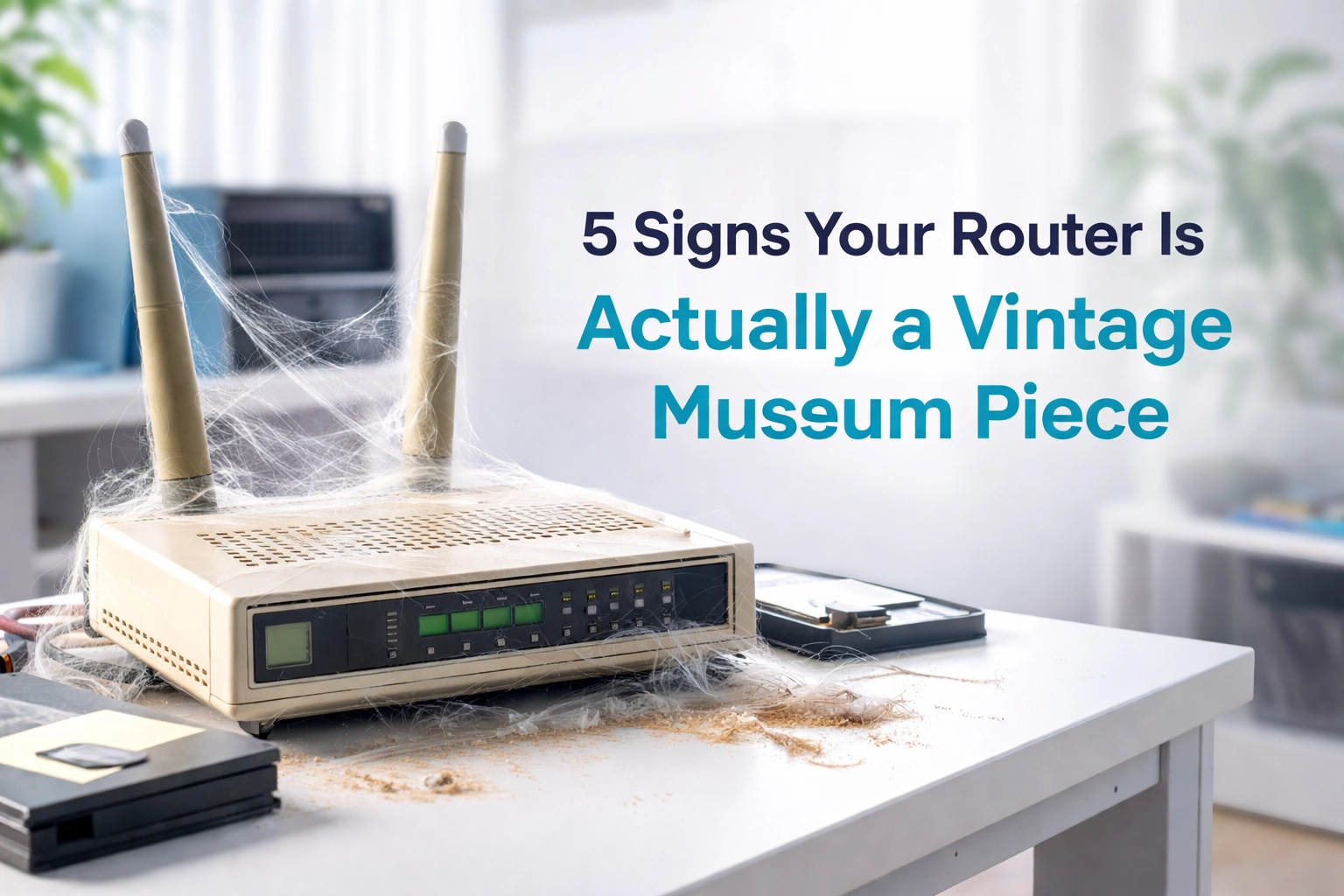
1. Your Router or Modem Is Outdated
Here's a truth bomb: if your router is more than four or five years old, it might be time for an upgrade. Technology moves fast, and older equipment simply wasn't designed to handle today's demands.
Modern households have more connected devices than ever before: smartphones, tablets, laptops, smart TVs, gaming consoles, and even smart fridges. An ageing router can struggle to keep up, especially if it doesn't support newer standards like WiFi 6.
What to do: Check how old your router is. If it's getting on in years, consider upgrading to a modern router that can handle multiple devices and offers better range and stability.

2. Poor Router Placement
Where you put your router matters more than you might think. Tucking it away in a cupboard, behind the TV, or in a far corner of the house might keep things tidy, but it's doing your WiFi signal no favours.
WiFi signals weaken as they pass through walls, floors, and furniture. The further you are from your router: or the more obstacles in the way: the weaker and more unstable your connection becomes.
What to do: Place your router in a central, elevated location. Keep it out in the open, away from thick walls and large metal objects. If your home has multiple floors or thick walls, you might need to look into mesh WiFi solutions for better coverage.
3. WiFi Interference from Other Devices
Your WiFi isn't the only thing using radio frequencies in your home. Microwaves, cordless phones, baby monitors, Bluetooth speakers, and even your neighbour's WiFi network all operate on similar frequencies: especially the crowded 2.4 GHz band.
When too many devices compete for the same airspace, interference happens, and your connection can become unstable or drop entirely.
What to do: If possible, switch your devices to the 5 GHz band, which is less congested. Keep your router away from microwaves and other electronics that might cause interference.
4. Too Many Devices Connected
Let's be honest: how many devices are actually connected to your WiFi right now? Between family members streaming, gaming, working from home, and all those smart devices quietly doing their thing in the background, your network can get seriously congested.
When your router is juggling too many connections at once, it can struggle to give each device the bandwidth it needs. The result? Slowdowns and disconnections.
What to do: Take stock of what's connected and disconnect devices you're not actively using. You might also want to prioritise certain devices (like your work laptop) in your router's settings through Quality of Service (QoS) features.

5. You're on a Crowded WiFi Channel
Think of WiFi channels like lanes on a highway. If everyone's in the same lane, traffic slows to a crawl. In densely populated areas: like apartment blocks or townhouse complexes: multiple WiFi networks often broadcast on the same channel, causing congestion and interference.
What to do: Log into your router's settings and try switching to a less crowded channel. Many modern routers can do this automatically, but a manual tweak can sometimes make a big difference. There are free apps available that can scan your area and show you which channels are least congested.
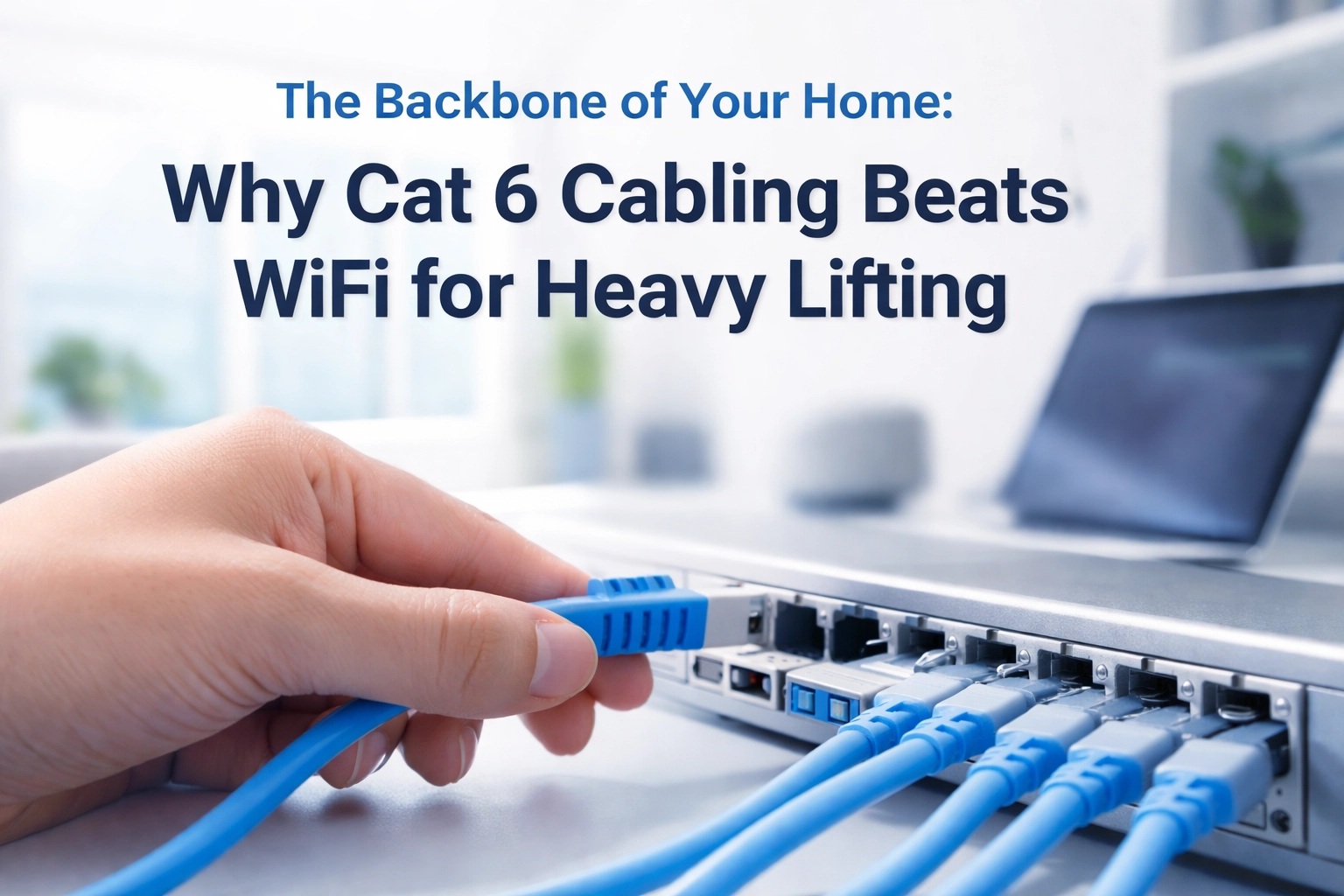
6. Damaged or Loose Cables
It's easy to overlook, but sometimes the problem is as simple as a dodgy cable. The Ethernet cables connecting your modem to your router (or your router to your devices) can become loose, damaged, or worn over time.
Even a slightly loose connection can cause intermittent dropouts that drive you up the wall.
What to do: Check all your cables. Make sure they're firmly plugged in at both ends and look for any visible damage like fraying or kinks. Replacing a cheap cable is a quick and easy fix that can save you a lot of headaches.
7. Your ISP Is Having Issues
Sometimes the problem isn't on your end at all. Internet Service Providers (ISPs) can experience outages, conduct maintenance, or have infrastructure problems that affect your connection. Some ISPs also throttle bandwidth during peak usage times.
What to do: Check your ISP's website or social media pages for any reported outages in your area. You can also give them a call to ask if there are known issues. If problems persist, it might be worth considering a different provider or upgrading your plan.

8. Your Internet Plan Doesn't Have Enough Bandwidth
Here's a scenario: you've got a 10 Mbps connection, but three people are trying to stream 4K video simultaneously while someone else is on a video call. That maths just doesn't add up.
If your internet plan doesn't provide enough bandwidth for your household's usage, you'll experience slowdowns and dropped connections, especially during busy periods.
What to do: Assess your household's internet needs. Streaming, gaming, and video calls all require significant bandwidth. If you're constantly running into issues, it might be time to upgrade to a faster plan. Check out our guide on how to fix slow WiFi at home for more tips.
9. Unauthorised Users on Your Network
If your WiFi network isn't properly secured, you could have uninvited guests helping themselves to your bandwidth. Neighbours, passersby, or even malicious actors can connect to an unprotected network and use up your data without you even knowing.
This not only slows down your connection but can also pose security risks.
What to do: Make sure your WiFi is password-protected with WPA3 or WPA2 encryption. Use a strong, unique password that isn't easy to guess. Regularly check your router's admin panel to see what devices are connected: if you spot anything unfamiliar, kick it off and change your password.
10. Background Processes and Software Conflicts
Sometimes the culprit is lurking on your own devices. Background updates, cloud syncing, automatic backups, and even malware can consume bandwidth without you realising it. Software conflicts or overly aggressive firewalls can also interfere with your connection.
What to do: Check what's running in the background on your devices. Pause any large downloads or updates when you need a stable connection. Run a malware scan to rule out any nasty surprises. If you suspect firewall issues, try temporarily disabling it to see if that resolves the problem (just remember to turn it back on!).

When DIY Fixes Aren't Enough
Sometimes you can troubleshoot all day and still not get to the bottom of your WiFi woes. That's where the professionals come in.
If you've tried everything and your internet is still dropping, there might be a deeper issue with your network setup, your property's layout, or your equipment that requires expert attention.
At WiFi Heroes, we specialise in diagnosing and fixing tricky WiFi problems. Whether you need a professional WiFi installation, help with getting great coverage throughout your property, or advice on the best equipment for your needs, we've got you covered.
Wrapping Up
A dropping internet connection doesn't have to be something you just live with. By understanding the common causes: from outdated equipment and poor placement to interference and bandwidth issues: you can take steps to stabilise your connection and enjoy smoother, more reliable WiFi.
Still struggling? Get in touch with WiFi Heroes and let's sort it out together. Life's too short for buffering.