Let's be honest, your Internet Service Provider wants you to think that upgrading your package is the only solution to your Wi-Fi woes. Buffering during video calls? Get faster internet. Kids complaining about lag? Time for a premium plan.
But here's the thing: most work-from-home Wi-Fi problems have nothing to do with your internet speed. They're about how your home network is configured, and that's something your ISP conveniently forgets to mention.
After helping countless South Africans transform their home office connectivity, we're spilling the secrets that can dramatically improve your work-from-home experience without spending a cent more on your monthly bill.
Secret #1: Your Router Has a VIP List (And Your Work Laptop Isn't On It)
Ever noticed how your video call freezes the moment someone starts streaming Netflix in the lounge? That's because your router treats all devices equally, your work laptop gets the same priority as your teenager's gaming console.
Here's what your ISP won't tell you: most routers have a feature called Quality of Service (QoS) that lets you create a priority list for devices. Think of it as a VIP section for your network traffic.
How to use it:
- Log into your router's admin panel (usually by typing 192.168.0.1 or 192.168.1.1 into your browser)
- Look for QoS, Traffic Management, or Bandwidth Control settings
- Add your work devices to the high-priority list
- Save and restart your router
Now, when the household bandwidth gets tight, your Zoom calls won't be the first casualty.

Secret #2: That "Smart" Band Selection Isn't So Smart
Modern routers broadcast on two frequency bands: 2.4 GHz and 5 GHz. Most ISP-provided routers combine these into a single network name and promise to "automatically" connect your devices to the best one.
Spoiler alert: the automatic selection is often wrong.
Here's the breakdown:
- 5 GHz: Faster speeds, less interference, but shorter range and struggles with walls
- 2.4 GHz: Better range and wall penetration, but slower and more prone to congestion from neighbours
The fix? Create separate network names for each band. Call one "HomeWiFi_5G" and the other "HomeWiFi_2.4G". Then manually connect your work laptop to the 5 GHz network when you're close to the router, and save the 2.4 GHz for devices in distant rooms.
This simple change gives you direct control over your connection quality, something your ISP's "smart" settings simply can't match.
Secret #3: You're Probably Sharing Your Channel With Half the Neighbourhood
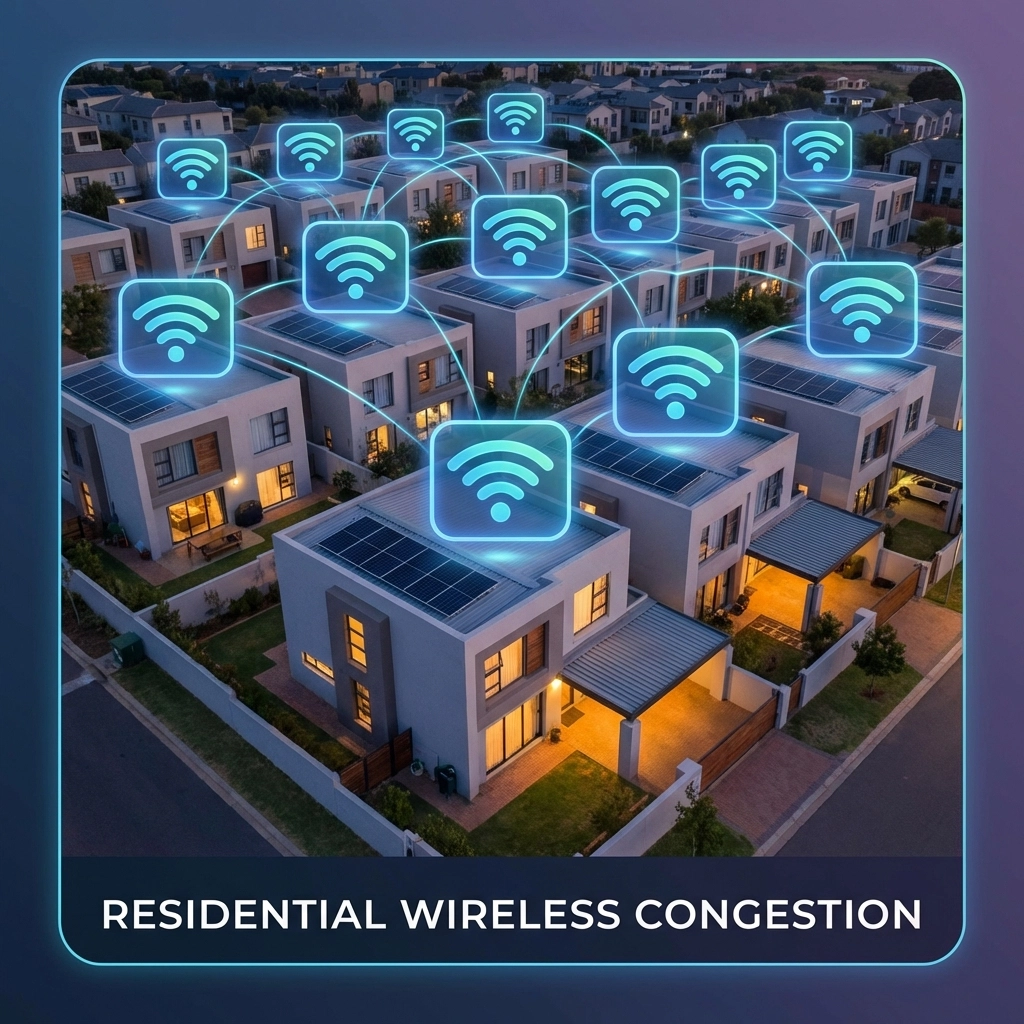
Picture this: you're trying to have a conversation at a party, but there are five other groups all talking at the same volume right next to you. That's essentially what's happening with your Wi-Fi in a typical South African neighbourhood.
Wi-Fi operates on channels, and if everyone on your street is using the same one (which they probably are, since routers default to the same channels), you're all competing for airspace.
Here's how to find some quiet:
- Download a free Wi-Fi analyser app on your phone (WiFi Analyzer for Android or Airport Utility for iPhone)
- Scan to see which channels are congested
- Log into your router and manually select a less crowded channel
- For 2.4 GHz, channels 1, 6, or 11 are best (they don't overlap)
- For 5 GHz, you have more options, pick the emptiest one
This is especially crucial if you live in a complex, townhouse estate, or any area with densely packed homes. A simple channel change can feel like you've doubled your internet speed.
Secret #4: Router Placement Is Everything (And Yours Is Probably Wrong)
Let's play a game: where's your router right now? If you said "in the TV cabinet," "behind the couch," or "in the corner of the house where the technician installed it," you've just identified why your home office has terrible Wi-Fi.
Router placement rules your ISP never mentioned:
- Height matters: Routers broadcast signals outward and downward. Place it on a shelf or mount it on a wall, not on the floor
- Central is better: The signal radiates in all directions, so a corner placement wastes half your coverage
- Avoid obstacles: Thick walls, mirrors, fish tanks, and microwaves all interfere with Wi-Fi signals
- Stay away from electronics: Other devices can cause interference
If your home office is far from where the router was installed, consider whether you can relocate the router or, better yet, invest in a proper mesh Wi-Fi system designed to cover your whole property.

Secret #5: Wi-Fi Extenders Often Make Things Worse
Here's a secret that might surprise you: that Wi-Fi extender you bought to boost your signal might actually be slowing you down.
Traditional extenders receive your Wi-Fi signal and rebroadcast it, but they use the same radio to do both. This effectively halves your bandwidth. Plus, they create a second network that your devices constantly switch between, causing drops and disconnections.
The better solution? If you're expanding coverage with mesh systems or access points, connect them to your main router using Ethernet cables rather than Wi-Fi. This is called "Ethernet backhaul," and it maintains your full internet speed throughout your home.
Use Cat 6 cables or better for the best results. Yes, it means running some cables, but the performance difference is night and day: especially for demanding work tasks like video conferencing and large file transfers.
For more tips on getting proper coverage throughout your property, check out our guide on how to get great WiFi coverage in your property.
Secret #6: Your Own Devices Are Sabotaging You
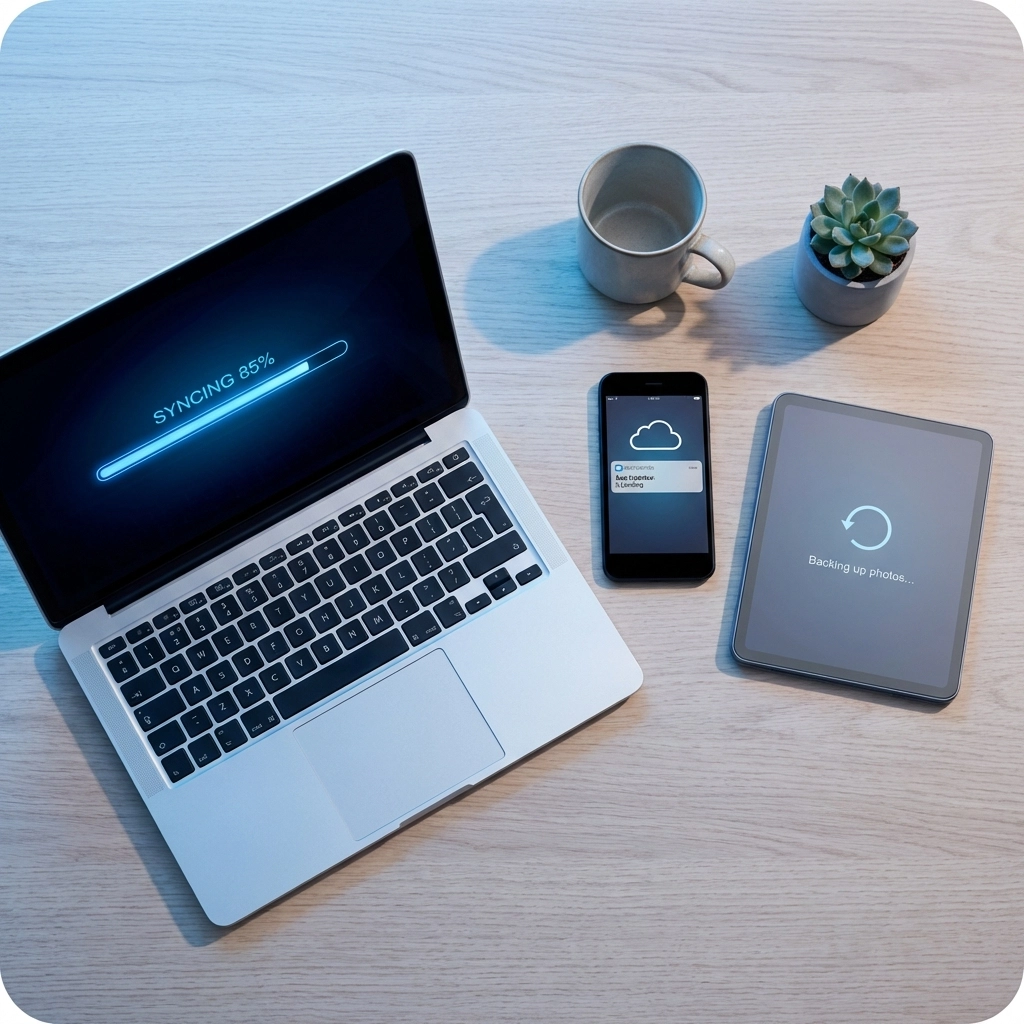
While you're trying to concentrate on a client presentation, your laptop might be quietly downloading a 2GB operating system update. Your phone could be backing up thousands of photos to the cloud. Your smart TV might be pre-loading the next episode of a series you watched once, three months ago.
These background processes consume bandwidth without you even knowing: and they always seem to kick in during your most important meetings.
Take back control:
- Schedule automatic updates for after work hours
- Pause cloud backup services during your workday
- Check what's running in the background on all devices
- Consider disconnecting smart home devices from your main network during critical work periods
Secret #7: Someone Might Be Stealing Your Bandwidth
This one's a bit uncomfortable, but it needs to be said: if your Wi-Fi password is still "password123" or your street address, there's a chance uninvited guests are enjoying your connection.
Even if you've got a decent password, older security protocols like WEP or WPA are easily cracked. Your ISP probably set up your router with basic security and never mentioned upgrading it.
Quick security checklist:
- Use WPA3 encryption if your router supports it (WPA2 at minimum)
- Create a strong, unique password (not your birthday or pet's name)
- Change the default admin password for your router
- Regularly check which devices are connected to your network
- Consider setting up a separate guest network for visitors
The Bottom Line
Your ISP provides the pipe that brings internet into your home: but what happens after that is largely up to you. With these optimisations, many work-from-home warriors find their connection dramatically improved without upgrading their package.
Of course, some homes need more than DIY tweaks. Complex layouts, thick walls, multiple floors, and outdoor offices often require professional assessment and installation to get connectivity right.
If you've tried everything and you're still battling, that's where we come in. At WiFi Heroes, we specialise in designing and installing home Wi-Fi solutions that actually work: not just in the lounge, but in every corner where you need to be productive.
Ready to stop fighting with your Wi-Fi? Get in touch with us and let's sort out your home network once and for all.